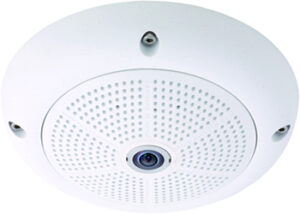
Mobotix Q22 |
Description
Limitations :
Mobotix does not do true dual channel streaming, the resolution for JPEG and MxPEG has to be the same
The camera has 6 different views, that can be chosen by changing the video input in CatVision. Only one input can be used at a time.
Consult Mobotix documentation (http://www.mobotix.com/other/Support/Demos/Hemispheric-Views) for a full explanation of these view.
Input 1: Full Image 360
Input 2: Normal
Input 3: Surround
Input 4: Panorama 180
Input 5: Panorama/Focus
Input 6: Double Panorama
To setup Motion Detection follow steps below:
Login on to the web interface of the camera.
Click on “Setup Menu”
Click on “General Events Settings” Make sure that the arming is enabled. Click on “Set” and “Close”
Open “Setup Menu” again and click on “Event Settings.” Go to the Events section and click on “Add Rectangle” follow the instructions on how to add the zone. Click on “Set” and “Close”
Open “Admin Menu” and click on “IP Notify Profiles” under the section “Transfer Profiles.”
Find the Profile named “SimpleNotify” and set the following:
IP Notify Type : Custom Configuration
Destination Address : IP of NVR with the port 32121 eg:(192.168.3.100:32121)
Data Protocol : Raw TCP/IP
Data Type : Plain Text
$(EVT.EST.ACTIVATED)
Click on “Set” and “Close”
Open “Setup Menu” again and click on “Messages”. Enable the message profile.
Go to “Event Selection and click on “Image Analysis: VM.”
Go to the “Actions” and and select “SimpleNotify” in the dropdown menu for “IP Notify”. Click “Set” and “Close”
On Catsite in the camera setup on the I/O tab you will be able to setup a tigger for VM.
Camera Details
Type:
Fisheye
Fisheye
Channels:
6
6
Streams:
2
2
Protocol:
Native
Native
Multicast:
No
No
Audio:
Listen only
Listen only
Edge Insertion:
No
No
VMD:
Yes
Yes
Codex:
MJPEG
MxPEG
Edge Review:
No
No
Resolution: 3.1MP (2048×1536)
Camera Events
Motion Detection
Triggers : 2
Trigger String : VM, VM2
Setup: See limitations
